
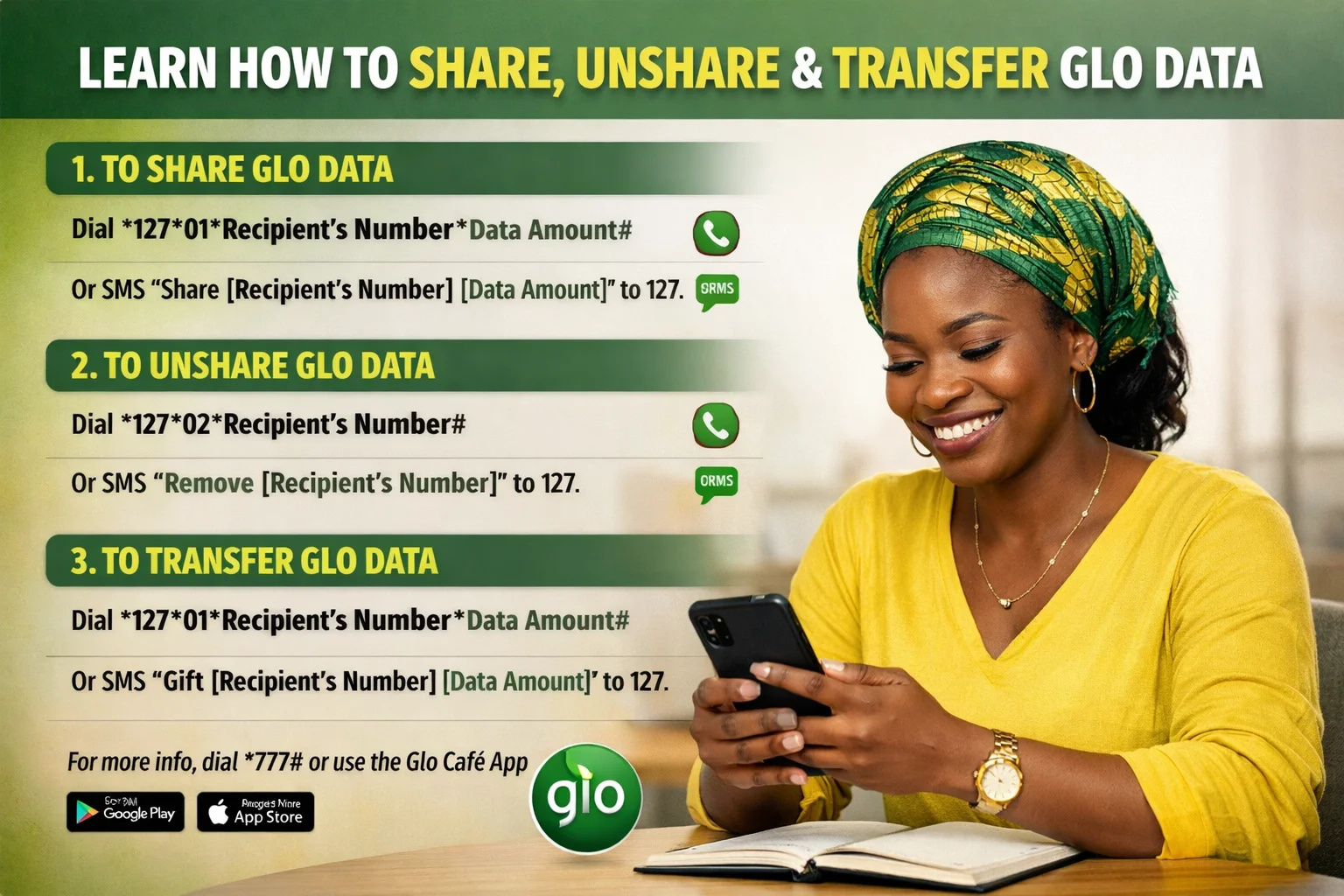
How to Share, Unshare & Transfer Glo Data
This article is a simple explanation of how to share, unshare, and transfer data on the Glo network in Nigeria. Everything here works only between Glo numbers. Glo data cannot be shared or transferred to MTN, Airtel, 9mobile, or any other network.
The guide uses all the confirmed methods available, including USSD codes, SMS, apps, and the Glo website, and explains them in a way that is easy to understand, even for a child.
Glo allows people to share data because many families and friends help each other stay online. This feature has helped keep many users loyal to the network, especially since data is now used for calls, messages, schoolwork, business, and entertainment.
What It Means to Share Data on Glo
Sharing data on Glo means allowing another person who uses a Glo line to use your own data bundle.
The person can browse the internet using your data for as long as your data lasts or until you remove the person from your shared list.
You can share your data with up to five Glo numbers at the same time.
How to Share Data on Glo
Sharing Data Using a Code (Fastest Way)
The oldest and fastest method of sharing data on Glo is by using a special code for data. You dial *127*01# followed by the Glo number that you wish to share the data with.
For instance, if you want to add a number, you simply dial *127# and then the number you want, which in this case is 08051234567, and the command *01 as shown below:
*127*01*08051234567#
You will receive a message confirming that the number has been added.
The number must be a Glo number.
Sharing Data Using the Glo USSD Menu
Another common way to share data is by using the main Glo USSD menu.
You dial *777# on your phone, choose Data Services, then choose Share Data Plan, then choose Share or Add Beneficiary.
After that, you enter the Glo phone number you want to share with and confirm.
You will receive messages telling you that the request was sent and that sharing was successful.
Sharing Data by SMS
Data can also be shared via SMS. To do this, open the message application, type the word Share and a space, then the Glo number, then send the message to 127.
For instance, by sending Share 08051234567 to 127, data sharing starts, and you get a confirmation message.
Sharing Data Using Glo Café App or Website
Glo also allows data sharing through digital platforms.
If you log in using your Glo SIM, you can use the Glo self-care portal or the Glo Café app.
Inside the app or website, you go to Data Services, then Share Data, and enter the Glo number you want to share with.
This method shows shared numbers clearly and allows easy control.
How to See Who Is Using Your Glo Data
Using a Code
Sometimes you may forget who is using your data, or you may think someone is using it too much.
To check, dial *127*00# on your phone.
Glo will send you a message showing all the numbers using your data.
Using SMS
You can also check this list by SMS. You simply send the word List to 127, and Glo will reply with the names or phone numbers currently sharing your data.
Using App or Website
If you use the Glo Café app or the self-care portal, there is a section called Shared Data or Shared Subscriptions where you can see all linked numbers.
What It Means to Unshare Data on Glo
Unsharing data means stopping someone from using your data.
People usually unshare data when their data is finishing too quickly, when someone adds themselves without permission, or when too many people are using the same data plan.
Removing unnecessary users helps you save data for when you really need it.
How to Unshare or Remove a Number from Your Data
Unsharing Using a Code (Fastest)
If you wish to unshare data, you’ll need to use the removal code.
You dial *127*02*, add the Glo number you want to remove, then finish with #.
For example, *127*02*08051234567#.
Once you dial it, that number is removed straight away and you will get a message to confirm it.
Unsharing Using the USSD Menu
You can also unshare data through the *777# menu.
You dial *777#, choose Data Services, then Share Data Plan, then Unshare or Remove.
After entering the phone number, Glo will send messages confirming that the request was received and completed.
Unsharing by SMS
Another method is SMS. You open your messages, type the word Remove followed by the Glo phone number, and send it to 127. Glo will reply to confirm that the number has been removed.
Unsharing Using App or Website
If you use the Glo Café app or the self-care portal, you can tap on any shared number and choose the remove or unshare option.
Unsharing When You Don’t Know the Number
If you want to unshare a number but you do not know it, the first step is to view the list of shared numbers using *127*00# or SMS. Once you identify the unwanted number, you can remove it using any of the unsharing methods.
What Data Transfer or Gifting Means on Glo
Data transfer, also called data gifting, is not the same as sharing.
When you transfer data, you give a set amount of your data to another Glo user. Once you send it, the data belongs to them and does not use your data again.
You can transfer a full data plan or just a part of the data you already have.
Setting or Changing Transfer PIN
Some transfers require a PIN.
- Dial
13200000NewPINNewPIN# - Example
132000005432154321#
This replaces the default PIN (00000).
Glo Data Transfer Codes and How They Work
Glo uses transfer codes to send data plans. The general Glo transfer system uses *127#, but data transfer codes depend on the value of the data plan.
For example, transferring a plan worth N2000 uses the code 12755 followed by the recipient’s Glo number and #.
Other plans also have their own codes, and once the code is dialled with the beneficiary’s number, the data is sent without extra charges.
How to Transfer Data on Glo
Using a Data Code
One way to transfer data is by dialling the correct data transfer code with the recipient’s Glo number. For example, to transfer a N2000 data plan to 07012345678, you dial *127*55*07012345678#. The data is delivered instantly, and there is no extra fee.
Using SMS
Another way is through SMS. You open your message app, type the word Gift followed by a space and the recipient’s Glo number, and send it to 127. This method is easier for people who do not want to memorise codes. The value of the data gifted will be deducted accordingly.
Using the Glo Website
Data can also be transferred through the Glo website, although this method is rarely used because it involves many steps. On the Glo website, you navigate through business sections to find data plan codes, then apply the appropriate code with the beneficiary’s number.
Transfer PIN and Confirmation Messages
For some data transfers, Glo may ask for a transfer PIN. You can change the default PIN by dialling 13200000NewPINNewPIN#. After any successful transfer, both the sender and the receiver usually get confirmation messages.
Important Rules to Remember
All data sharing and transfer on Glo works only between Glo numbers. There is no way to transfer or share Glo data to MTN, Airtel, 9mobile, or any other network because they are different companies.
There is usually no extra charge for sharing or transferring data; only the amount of data sent is deducted.
You can share data with a maximum of five people.
If your data finishes or expires, everyone sharing it will stop browsing automatically.
How to Check Your Glo Data Balance
Checking your data balance is important, especially if you share your data with others. To check the balance using the data code, you need to dial *1270#.
Another way of checking the balance is by sending the word Info to 127.
Finally, another way of checking the balance is by the USSD menu method. Here, you need to dial *777#, followed by option 1 and the final option 5. Your data balance will show on your screen and also come as a text message.
Problems/Solutions
Request Failed or Service Not Available
- Why it happens: Bad network or weak signal
- Fix: Turn airplane mode on and off, try again later, or use SMS / Glo Café app
Data Draining Too Fast
- Why it happens: Too many people using your data, or someone is streaming/downloading a lot
- Fix: Remove extra users, or send them a fixed amount of data instead of sharing your whole plan
Cannot Remove a Number
- Fix: Dial *127*02*Number# or send “Remove Number” to 127
- If that doesn’t work: restart your phone or use the Glo Café app
Transfer Not Working
- Why it happens: Transfer PIN not set, or not enough data
- Fix: Set your PIN, try sending a smaller amount, or use the *777# menu